 macOS App
Koler Dead Pixel & Display Test
Check for dead pixels, backlight bleed, burn‑in, color accuracy. 20+ tests in one app.
Download Free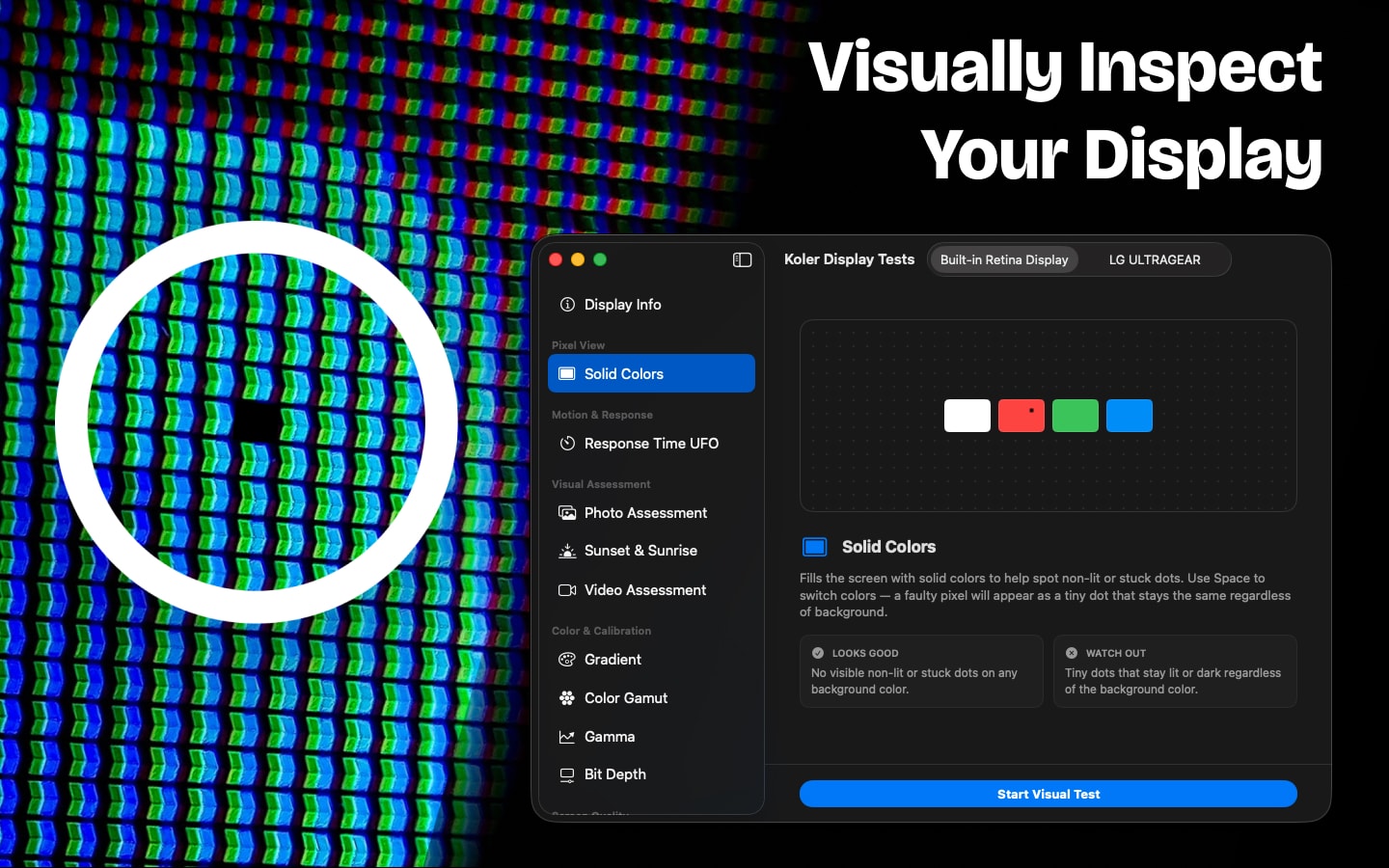
About
Koler is a free dead pixel test and display checker for Mac. Run 20+ full-screen visual tests to check for dead pixels, stuck pixels, backlight bleed, screen burn-in, color accuracy, and more — all in one native macOS app. No browser needed, works entirely offline. Whether you're inspecting a new MacBook, testing an external monitor before buying, or evaluating a display for creative work — Koler shows you everything in seconds.
Dead Pixel Test
Check your screen for dead pixels, stuck pixels, and hot pixels. Full-screen solid color screens — white, black, red, green, blue, and gray — make any defective pixel easy to spot. The fastest way to test your MacBook or external monitor for dead pixels without opening a browser.
Backlight Bleed & IPS Glow Test
Detect backlight bleeding and IPS glow on LCD displays. A full-screen black test pattern reveals light leaks around edges and corners — the standard method to check backlight quality on any monitor.
Screen Burn-in & OLED Burn-in Test
Check for screen burn-in, image retention, and ghost images on OLED and LCD displays. Solid color patterns and gray screens reveal permanent pixel degradation and temporary image persistence — essential for used displays and OLED MacBooks.
Response Time UFO Test
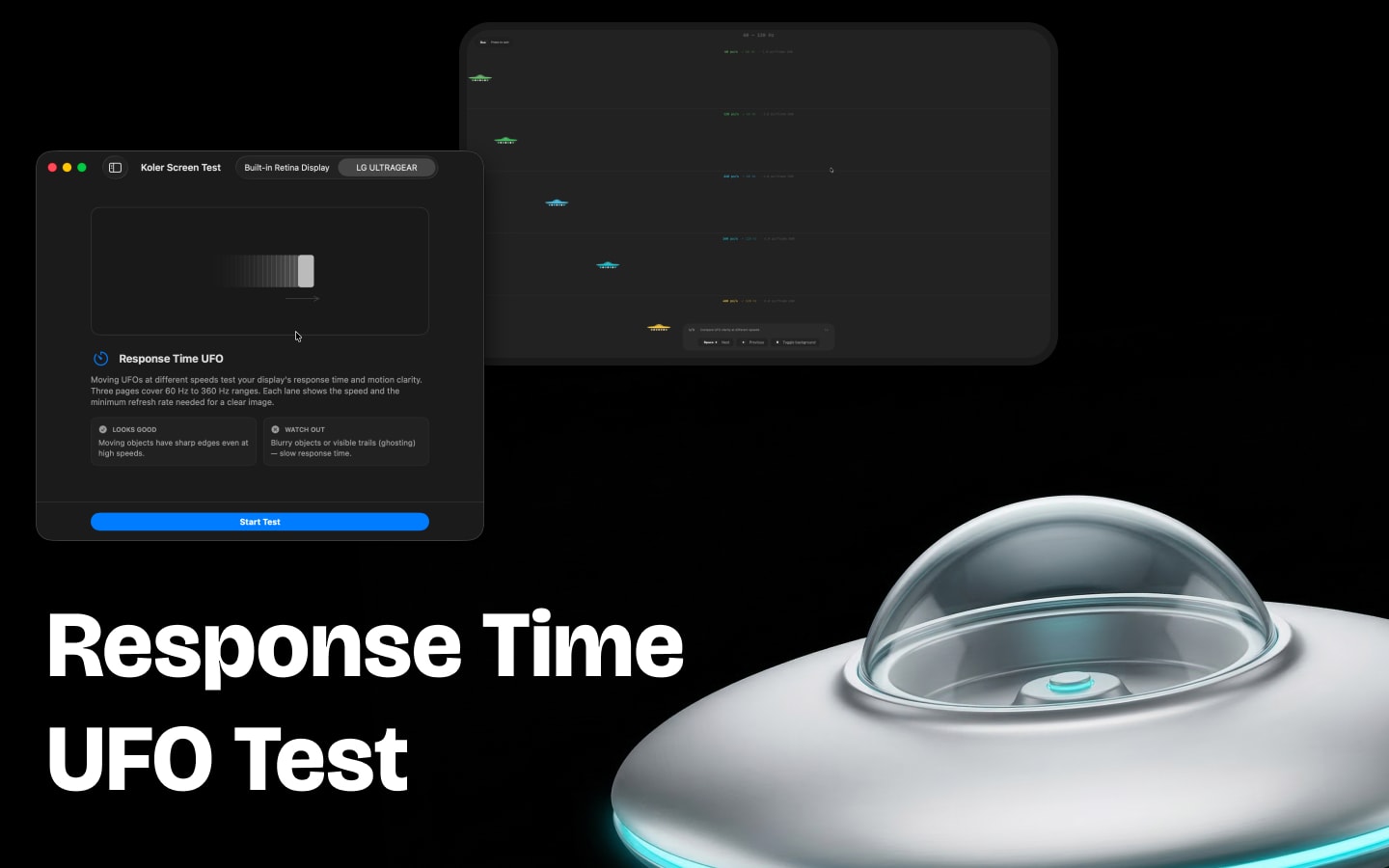
Moving objects at different speeds expose ghosting, motion blur, and slow pixel response times. See exactly how your display handles fast motion — essential for gamers, video editors, and anyone evaluating monitor performance.
Color Gamut Test — sRGB vs Display P3
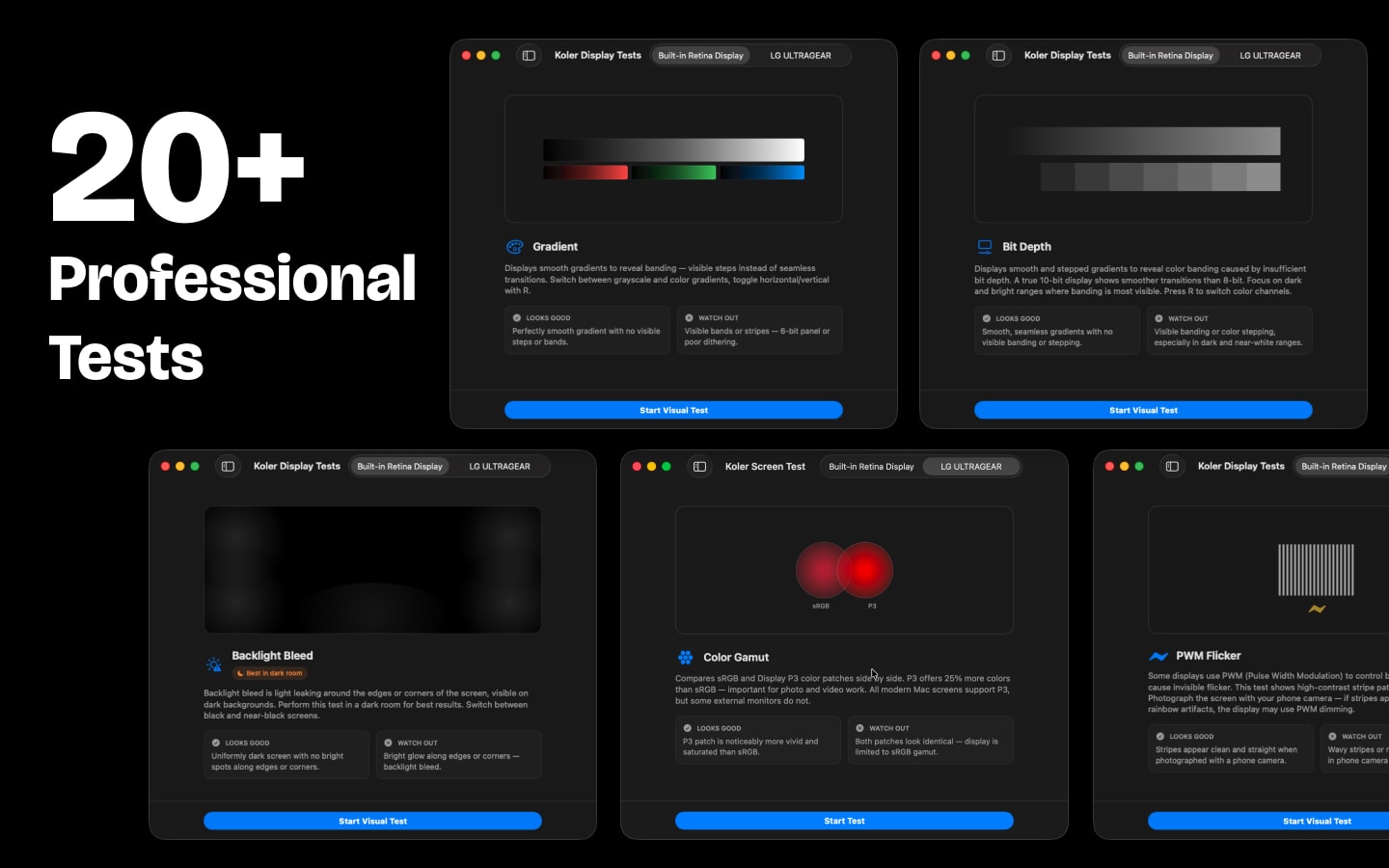
Side-by-side sRGB vs Display P3 color gamut comparison. Check whether your monitor supports wide color and see the difference in real time. A must-have test for designers, photographers, and colorists.
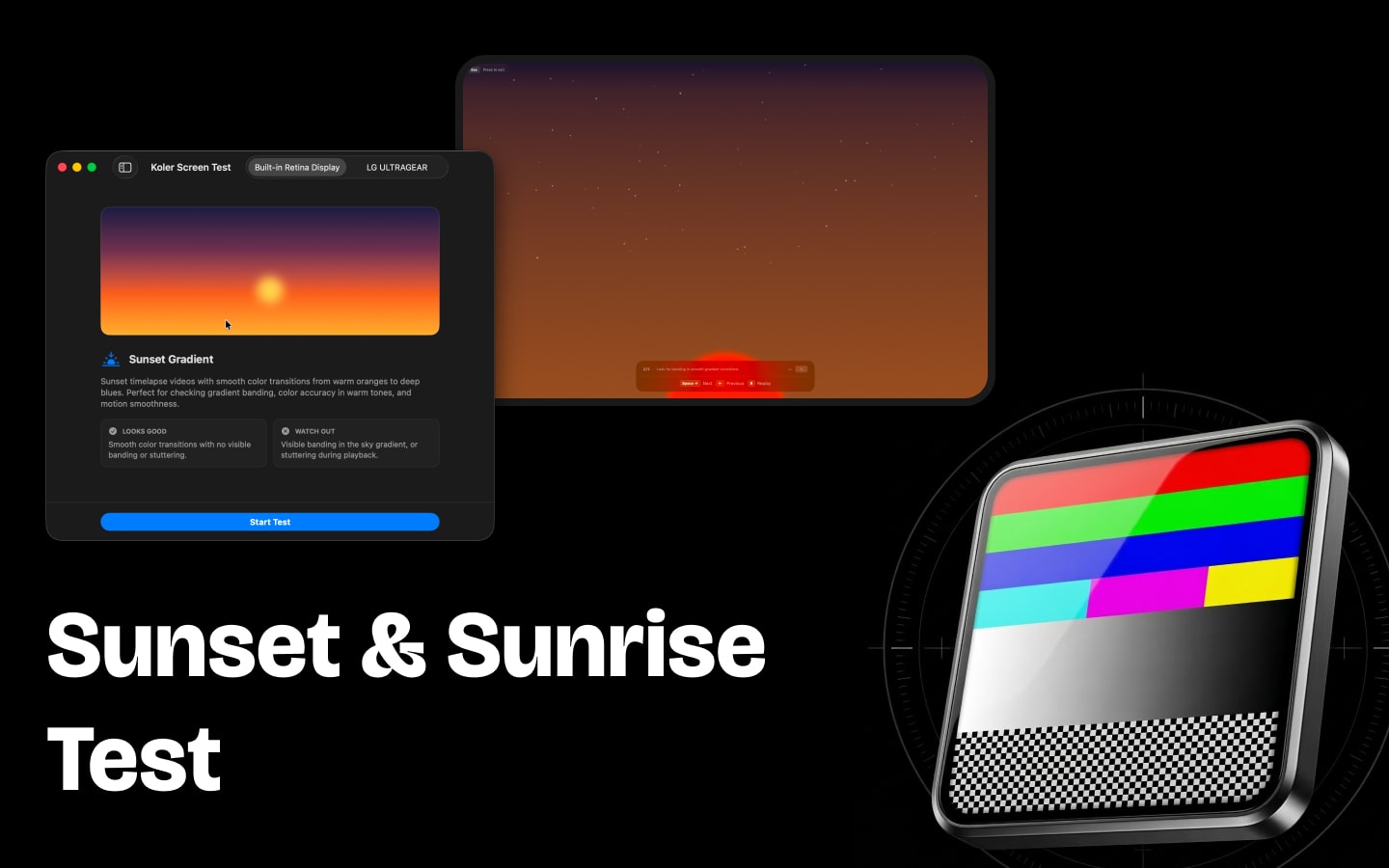
Gradient Banding & Color Accuracy Test
Smooth gradient test patterns reveal color banding, posterization, and dithering issues. Evaluate how accurately your display renders color transitions — a key indicator of panel quality and bit depth.
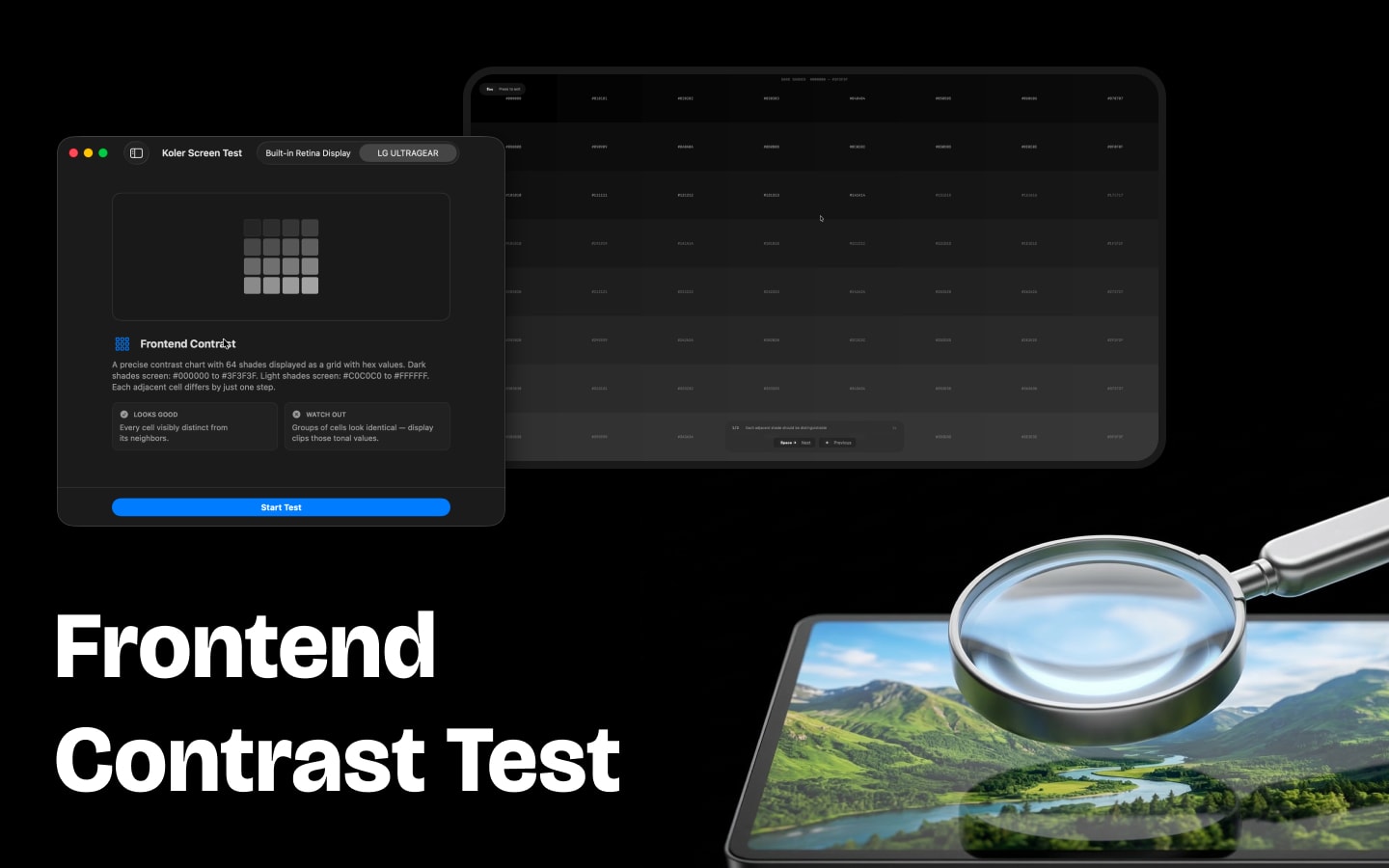
Contrast, Gamma & Screen Uniformity
Test near-black and near-white contrast levels. Verify gamma with stripe patterns. Check screen uniformity by scanning for clouding, bright spots, and uneven backlighting across the entire panel.
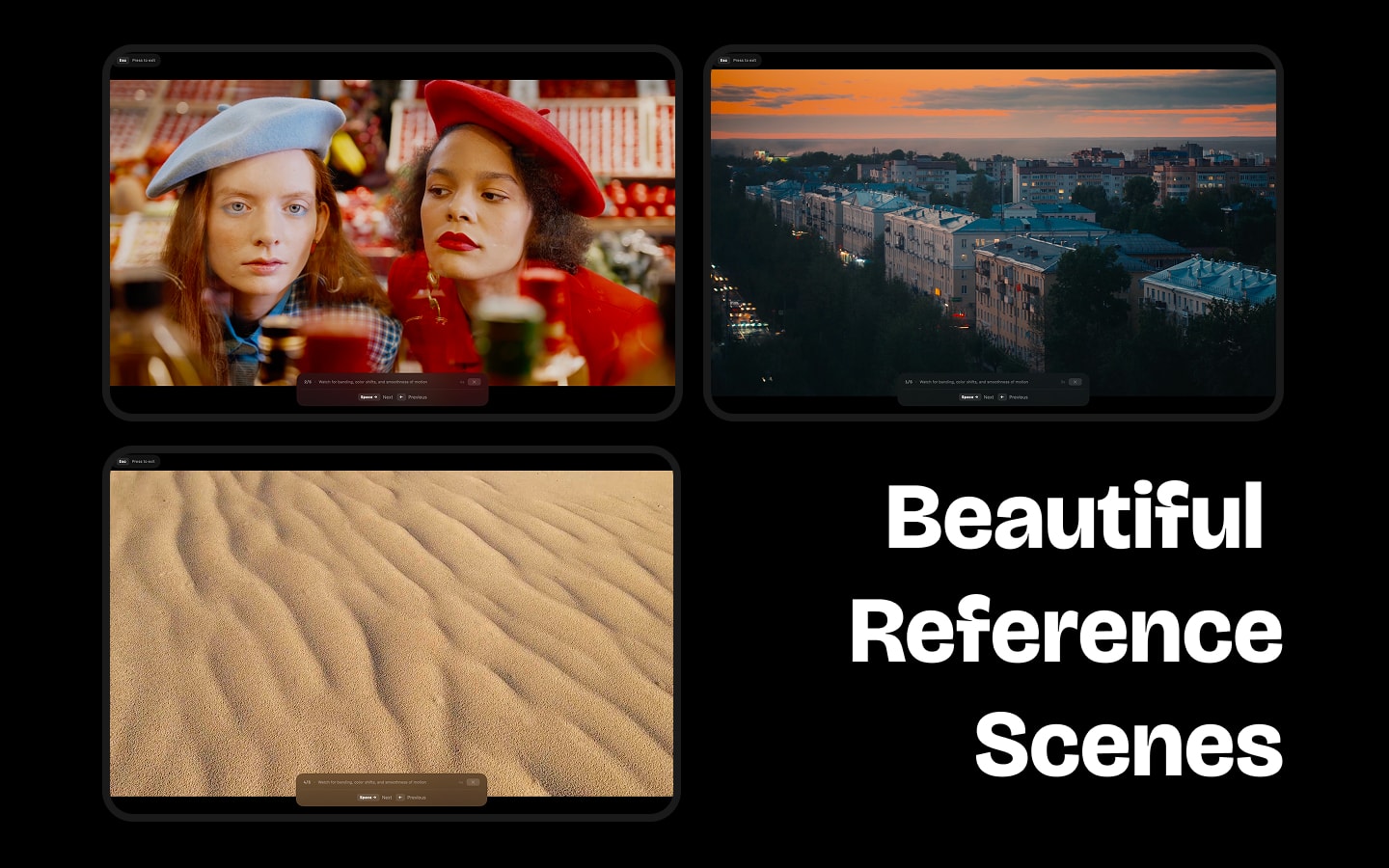
Photo & Video Display Assessment
Evaluate your screen with real-world reference photos and timelapse videos. See how your display handles natural colors, fine gradients, shadow details, and highlights — the way your content actually looks.
Multi-Monitor Support & Auto-Cycle
Test any connected display — MacBook built-in screen, external monitor, or projector. Auto-cycle mode runs through all tests hands-free. Choose which display to test, and switch instantly.
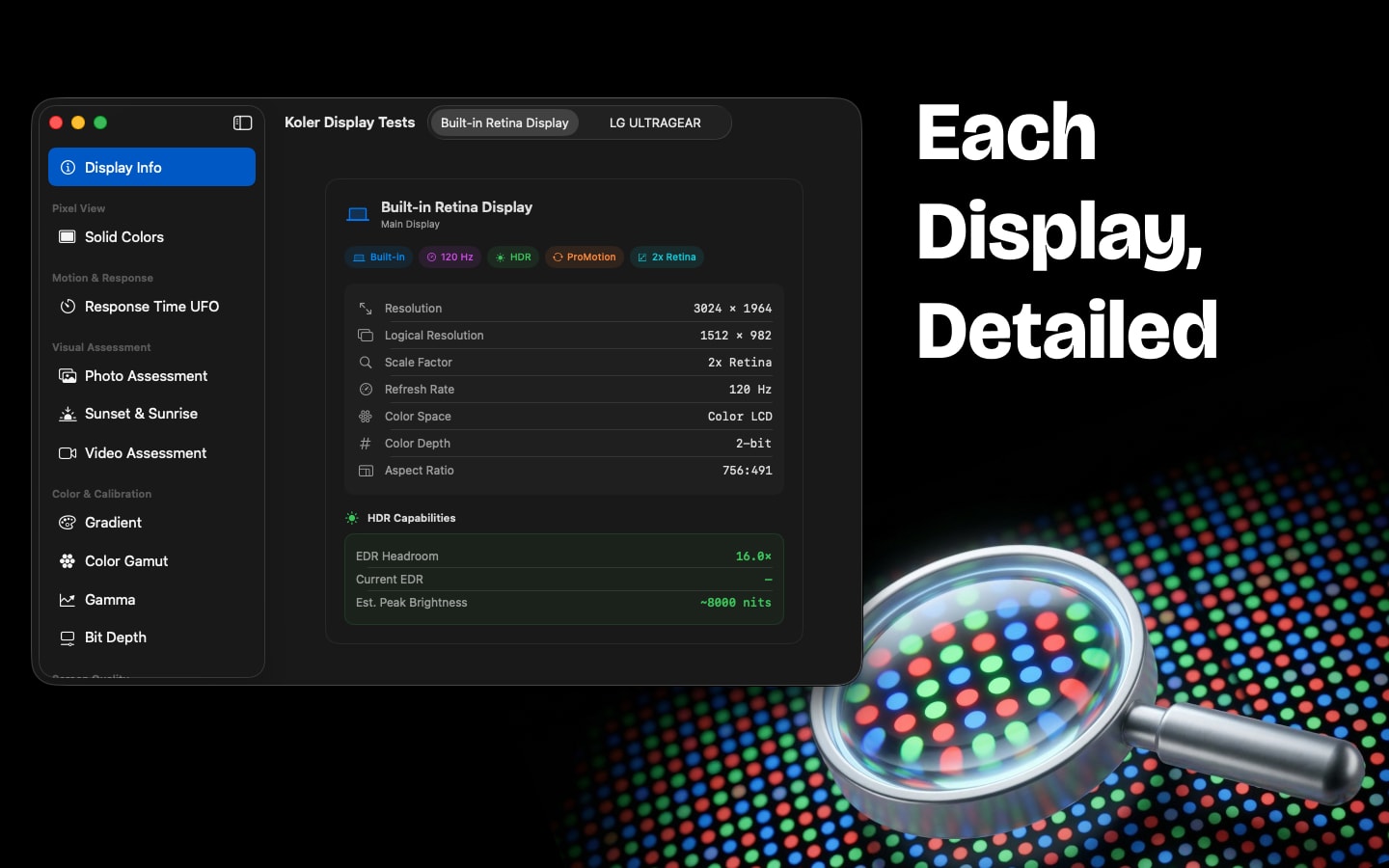
Display Info Panel
Detailed technical specs for each connected screen: resolution, refresh rate, color space, HDR support, ProMotion, EDR headroom, panel type, and more. Know exactly what your display can do.
Frequently Asked Questions
- How do I check for dead pixels on my Mac?
- Open Koler and run the Dead Pixel test. It displays full-screen solid colors — white, black, red, green, blue, and gray. Look for any dot that doesn't match the rest of the screen. A black dot on a colored background is a dead pixel, a colored dot that doesn't change is a stuck pixel. The test takes about 2 minutes.
- Is Koler free?
- Yes, Koler is completely free on the Mac App Store. No in-app purchases, no subscriptions, no hidden costs. All 20+ tests are included.
- How do I test for backlight bleed on my monitor?
- In Koler, run the Backlight Bleed test. It displays a full-screen black image. In a dark room, check the edges and corners of your display for any bright spots or light leaking through — this is backlight bleeding. Some IPS glow (a warm glow visible at angles) is normal for IPS panels.
- Can Koler detect screen burn-in on OLED displays?
- Yes. Koler's burn-in test displays solid colors and gray screens that make permanent pixel degradation and ghost images easy to see. This works for both OLED burn-in and LCD image retention. Especially useful for checking used displays or OLED MacBook Pro screens.
- How do I test my monitor before buying?
- Install Koler on any Mac and connect the monitor. Run the dead pixel test first, then backlight bleed, gradient banding, and color gamut tests. Use auto-cycle to run all 20+ tests hands-free. The entire check takes under 5 minutes and covers everything you need to verify before accepting a new or used monitor.
- What is the UFO response time test?
- The UFO test shows moving objects at different speeds across your screen. It reveals ghosting (trailing shadows behind moving objects), motion blur, and slow pixel response times. Higher response times cause more visible ghosting. This test is essential for gamers and video editors.
- Does Koler work with external monitors?
- Yes, Koler supports all connected displays — MacBook built-in screens, external monitors, ultrawide displays, and projectors. You can choose which display to test and switch between them instantly.
- What is the difference between sRGB and Display P3?
- Display P3 is a wider color gamut that covers about 25% more colors than sRGB. Koler's color gamut test shows a side-by-side comparison — if the P3 and sRGB colors look identical, your monitor doesn't support wide color. All modern MacBooks and Apple displays support Display P3.
- Is Koler better than online dead pixel tests?
- Yes. Online tests run in a browser, so your menu bar, dock, and browser controls are still visible — you can't test the full screen. Koler is a native app that covers every pixel. It's also offline, faster, and includes 20+ tests beyond just dead pixels.
- What macOS version is required?
- Koler requires macOS 15.0 (Sequoia) or later. It is a native macOS app built with the latest Apple technologies.
- Does Koler require any permissions?
- No. Koler requires no permissions — no camera, microphone, or file access needed. It simply displays full-screen test patterns on your screen.
- Does Koler collect any data?
- No. Koler collects zero data — no tracking, no analytics, no account required. The app works 100% offline. Your privacy is fully protected.
- What languages does Koler support?
- Koler is available in English, French, German, Italian, Japanese, Korean, Portuguese, Russian, Simplified Chinese, and Spanish.
Ready to test your display?
Free on the Mac App Store. No browser needed.
Download FreeFree · macOS 15+ · No permissions required